Audio Trimmer / Cutter
Start–end slice with waveform + WAV export.
How to use
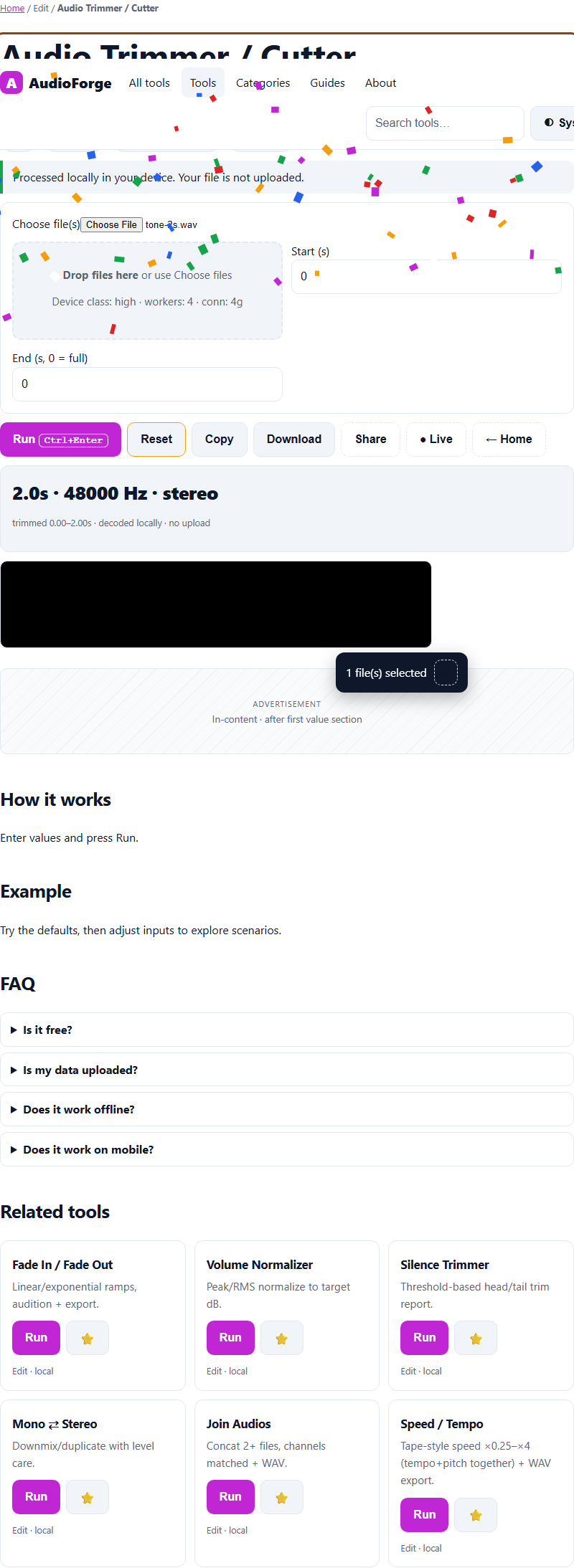
Choose audio in Audio Trimmer / Cutter: set Start (s) and End (s, 0 = full), press Run, and AudioForge processes the selected file in your browser with a Web Audio decode pipeline — progress and cancel are available where supported. You get a result and a download when processing succeeds; the selected file is not sent to a Tolari processing endpoint.
Steps
- Use the embedded Audio Trimmer / Cutter on this page (or open the full tool).
- Set Start (s) and End (s, 0 = full) audio.
- Press Run (Ctrl+Enter) and follow progress if shown.
- Download the result, or share a link to this tool.
FAQ
Is Audio Trimmer / Cutter really free?
Yes. No account or credits are required, and no paywall blocks the task. Browser, device, and stated file-size limits still apply. Ads may appear only when configured and enabled after the required consent signal.
Do I have to upload my files to use Audio Trimmer / Cutter?
No. This tool reads and processes the selected file in your browser with a Web Audio decode pipeline; the implemented flow does not send it to a Tolari processing endpoint. The page may still request scripts or other resources from configured third parties.
What should I enter in "Start (s)"?
Put your start (s) here — for example: 0. Leave the defaults first to see how it works, then adjust. Every field is validated with a plain-language message if something is off.
How should I compare Audio Trimmer / Cutter with other options?
Compare supported inputs, output quality, file-size limits, browser compatibility, and privacy terms using the same sample. Provider features and terms can change; check their current documentation.
How accurate is Audio Trimmer / Cutter?
This tool computes in your browser when run. Results depend on the selected inputs, browser support, and the specific operation.
Content continues below
Compare before choosing
Compare supported inputs, output quality, limits, browser compatibility, and privacy terms before choosing a tool for trimming, converting and inspecting audio. Feature checklist.